May 22nd, 2024
TIL: Full-Page Screenshots in Chrome
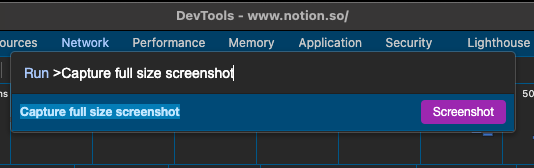
While doing some design research for Juicy, I wanted a screenshot of Notion's home page. I'm happy to share that this seemingly straight-forward task lead me to discover a useful screenshot feature in Chrome that can capture an entire page. (If you're eager to read the step-by-step instructions, scroll down to the last section.)
Normal screenshots miss a lot
MacOS's built-in screenshot tool is easy and always available. Pressing the shortcut Cmd+Shift+4, then Space allows me to capture any window by clicking on it. Here's a screenshot I was able to snap within a few seconds.
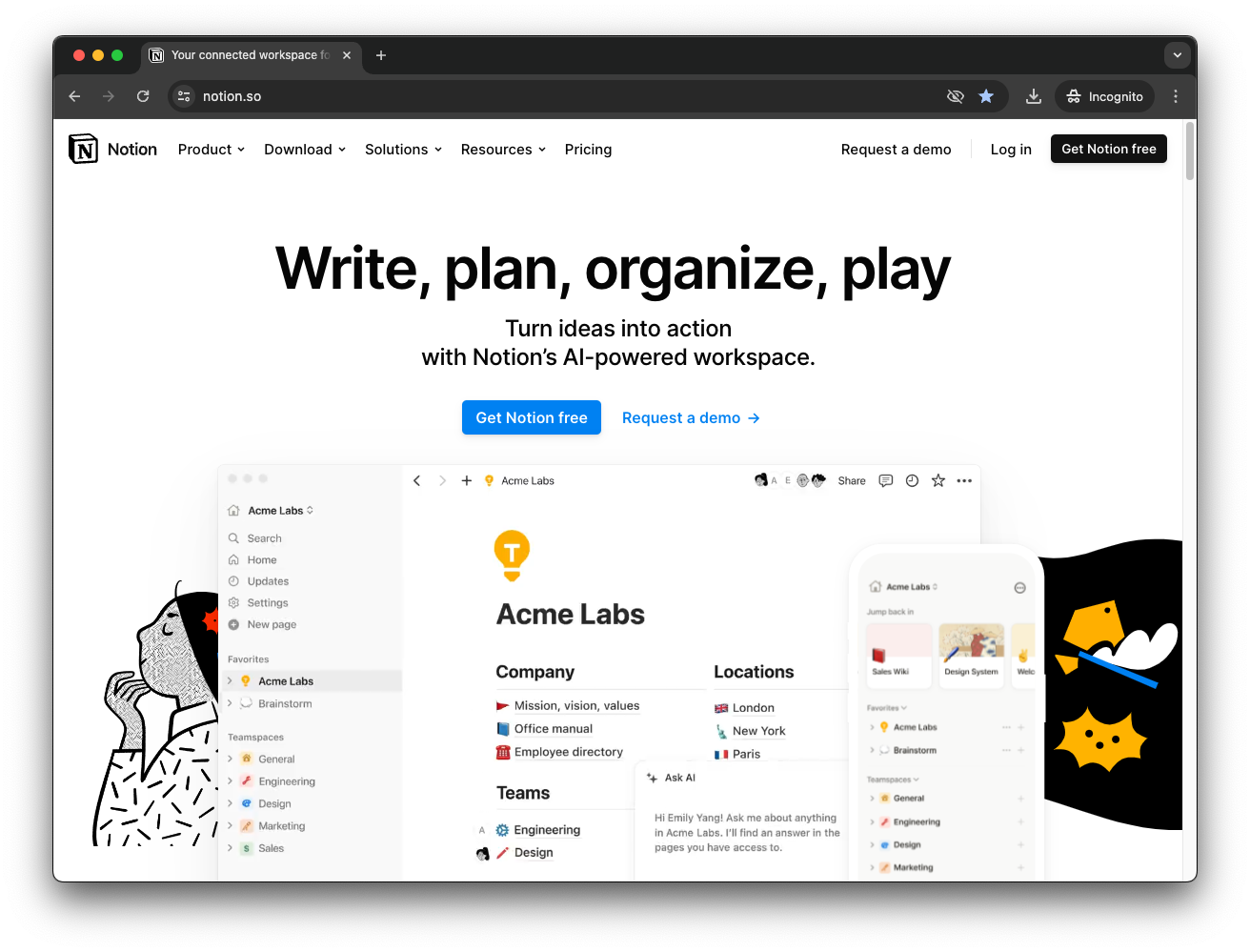
Notice how any content below the current viewport isn't visible. This is a problem for me as I want to capture the entire page in Figma and study it closely.
My next idea was to print the page as a PDF (type Cmd+P to open the Print dialog, then select Save as PDF as the destination). While this did produce a PDF containing the entire page, it had two serious issues. First, there were fidelity problems - several graphic elements didn't render the same as I was seeing them on the screen and the PDF is broken up into multiple pages rather than being a single coherent image. These fidelity issues would undermine my attempts to study the design. Second, I don't know how to import a PDF into Figma.
After some good old fashioned research, I discovered a nifty Chrome feature that I never knew existed:
Take full-page screenshots with Chrome's dev tools
How to do it:
Visit a website in Chrome.
Open Chrome's developer tools via the menu (More tools... > Developer tools) or, as I do, by pressing
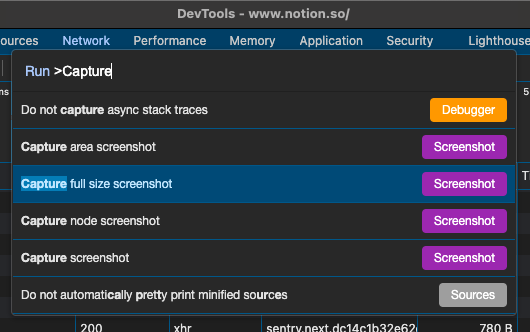
F12(macOS).Launch the command palette (screenshot below) by pressing the
Cmd+Pshortcut (note: the dev tools must have focus when pressing this shortcut, otherwise you'll open the Print dialog).I had no idea the command palette existed before today! It looks absolutely packed with useful commands.
Switch to the Run> prompt by typing ">" (closing angle bracket; i.e., press
Shift+.).Finally, start typing "Capture" to filter the list, then use the arrow keys to select Capture full size screenshot, and press
Enter.
Chrome will take a screenshot of the current page. This can take a few seconds. When finished you'll be prompted with a file selection window asking where to save the screenshot.
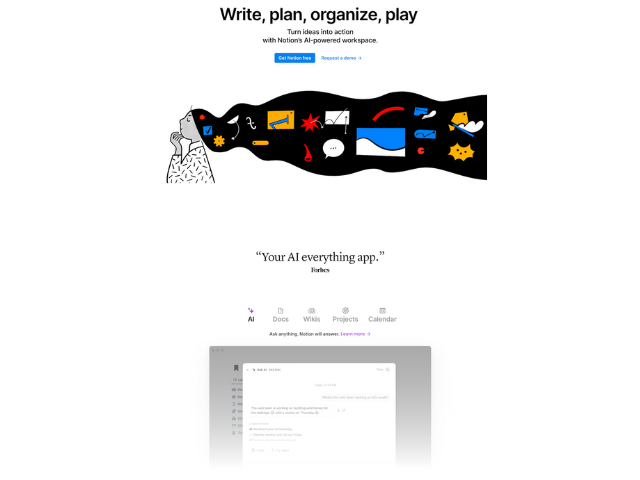
That's it! Now we know how to capture beautiful full-page screenshots using Chrome's built-in feature (albeit, a hard-to-find feature).
If you enjoy content like this, discover more by following me on LinkedIn or Twitter.